Talk through the next step.
Call Orbit from a regular conversation or support with OpenAI Realtime voice. Ask questions and request supported CRM actions. Keep the call dock with you as you move between supported Seedly pages.
GOSEEDLY / ORBIT 1.6
Ask by voice. Let Orbit help navigate your CRM, find records and prepare drafts with the access you choose. Add repeatable agents and helpful support, with your approval before CRM changes are applied.
One-time source-code purchase. OpenRouter for chat and agents; OpenAI for voice. Provider usage is separate.
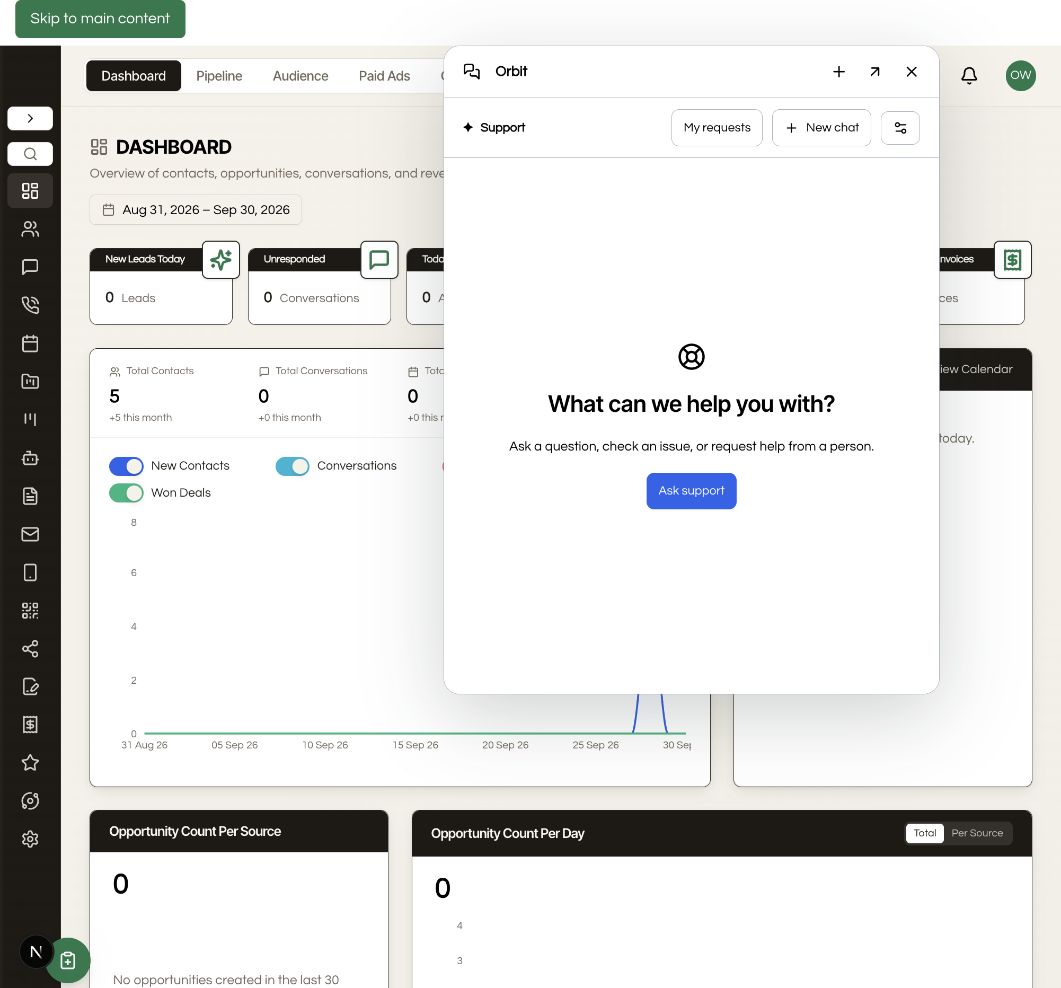
Call Orbit from a regular conversation or support with OpenAI Realtime voice. Ask questions and request supported CRM actions. Keep the call dock with you as you move between supported Seedly pages.
Opt in to in-app screen access. Orbit can navigate supported pages, read permitted context, filter lists, open records and fill supported unsaved drafts. Pause with the call button, Escape or your voice; you decide when to resume.
Use Voice & screen controls to choose navigation only, screen context, record controls or unsaved drafts. Allow individual pages, select a voice and language, set call limits and manage the connection from Settings.
A greeting gets a greeting. A how-to question uses your approved knowledge. A specific problem can use permitted diagnostics. Switch naturally between everyday help and support in the same conversation.
Set agency defaults or account overrides for the name, tone, instructions, knowledge and permitted tools. Preview a request before handing it to your native support queue.
Start with a morning briefing, contact review, lifecycle report or lead follow-up template. Describe the job in chat to prepare an editable agent draft, or start from a template. Choose the records, tools and expected result, then rehearse before enabling.
Try the job with real CRM data. Inspect sources and proposed actions, save feedback, and refine the rules before accepting the result.
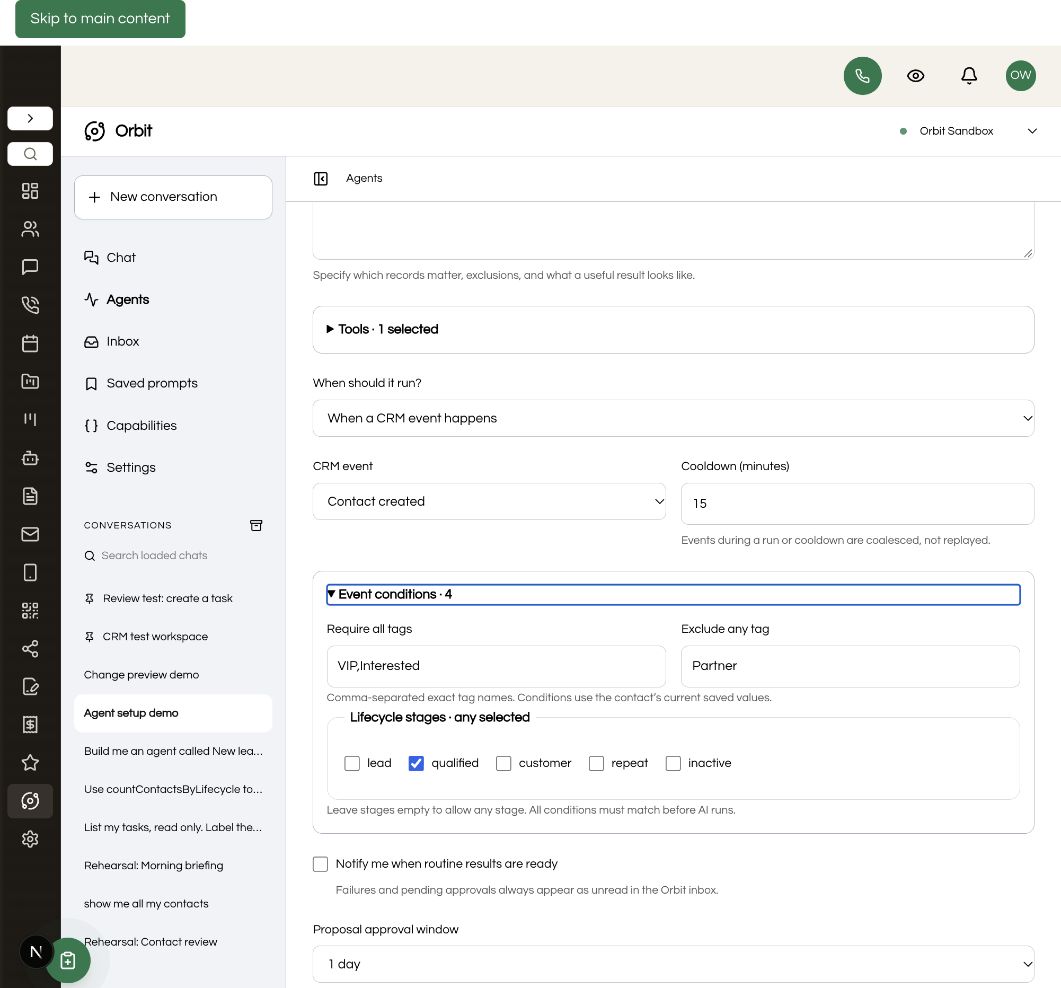
Run on demand, daily, on weekdays, weekly or monthly in your timezone. Or react to a new contact, a contact update or an added tag. Filter contact events by required tags, excluded tags and lifecycle stage. Jobs continue with the browser closed. Pause them when you need to.
Set record and daily run limits. Follow personal agent outcomes and actionable approvals in Inbox. Review before/after values on supported updates; known values are checked again before applying. CRM changes still need your explicit approval, with an agent approval window you can set from 15 minutes to seven days.
NEW IN ORBIT 1.6
Start from a conversation or support. Ask Orbit to find information or prepare a supported action while the call stays available as you navigate.
Give Orbit access to supported Seedly controls. Find a contact, filter a task list or prepare an unsaved draft. You can pause screen access at any time.
Review drafts before saving or sending. Approve supported CRM changes on screen. Set agency defaults and account permissions in Voice & screen controls.
CUSTOMIZABLE SUPPORT
Add approved articles, set your tone and choose exactly which tools support can use. Start with agency defaults, then allow account-specific customization where it makes sense.
When a person is needed, the user reviews the summary and destination before sending it to Seedly’s native support request queue. AI pauses after handoff, and My requests shows the intake status.
Explore support setup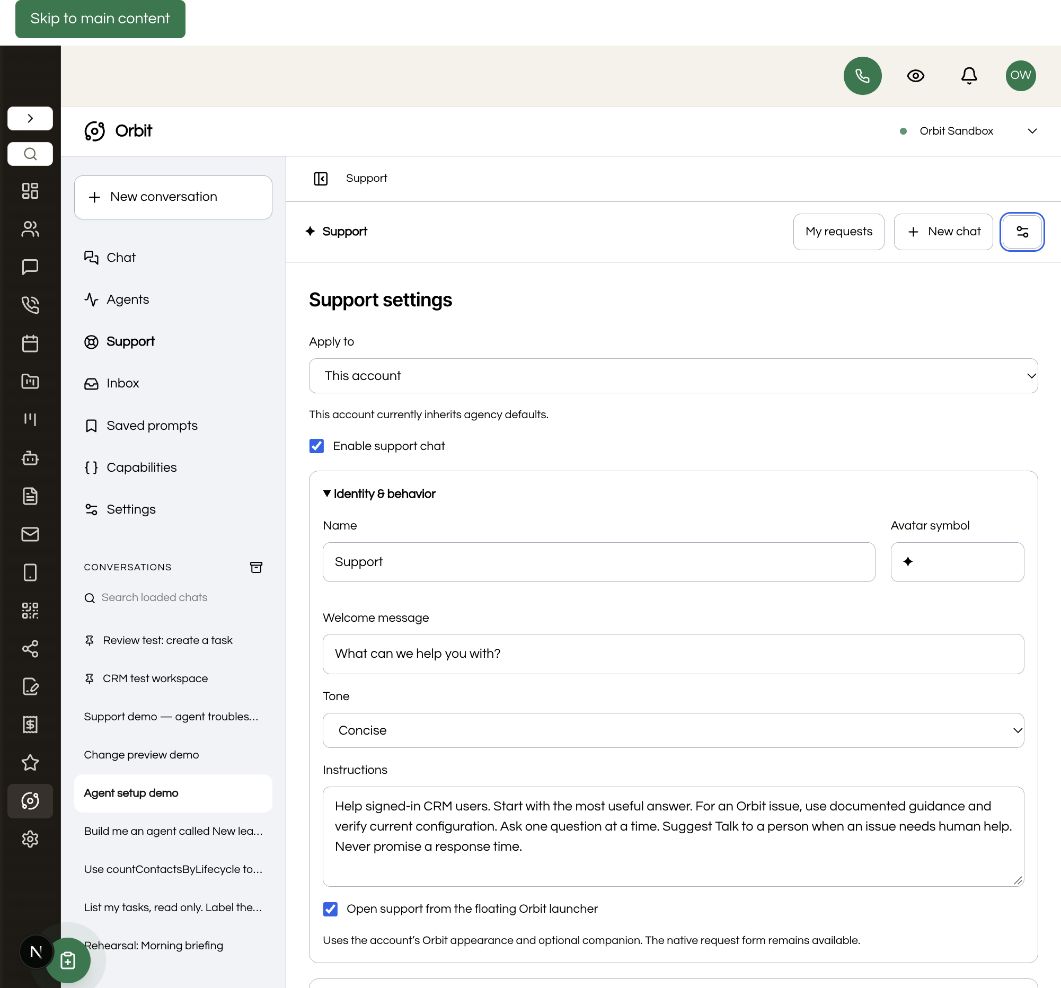
START WITH A USEFUL JOB
Summarize open opportunities and overdue tasks, with the records behind the answer.
Review a bounded set of contacts, surface missing information and suggest useful next steps.
Use available contact and task history to recommend next steps and propose tasks for review.
CHAT WHEN YOU NEED IT
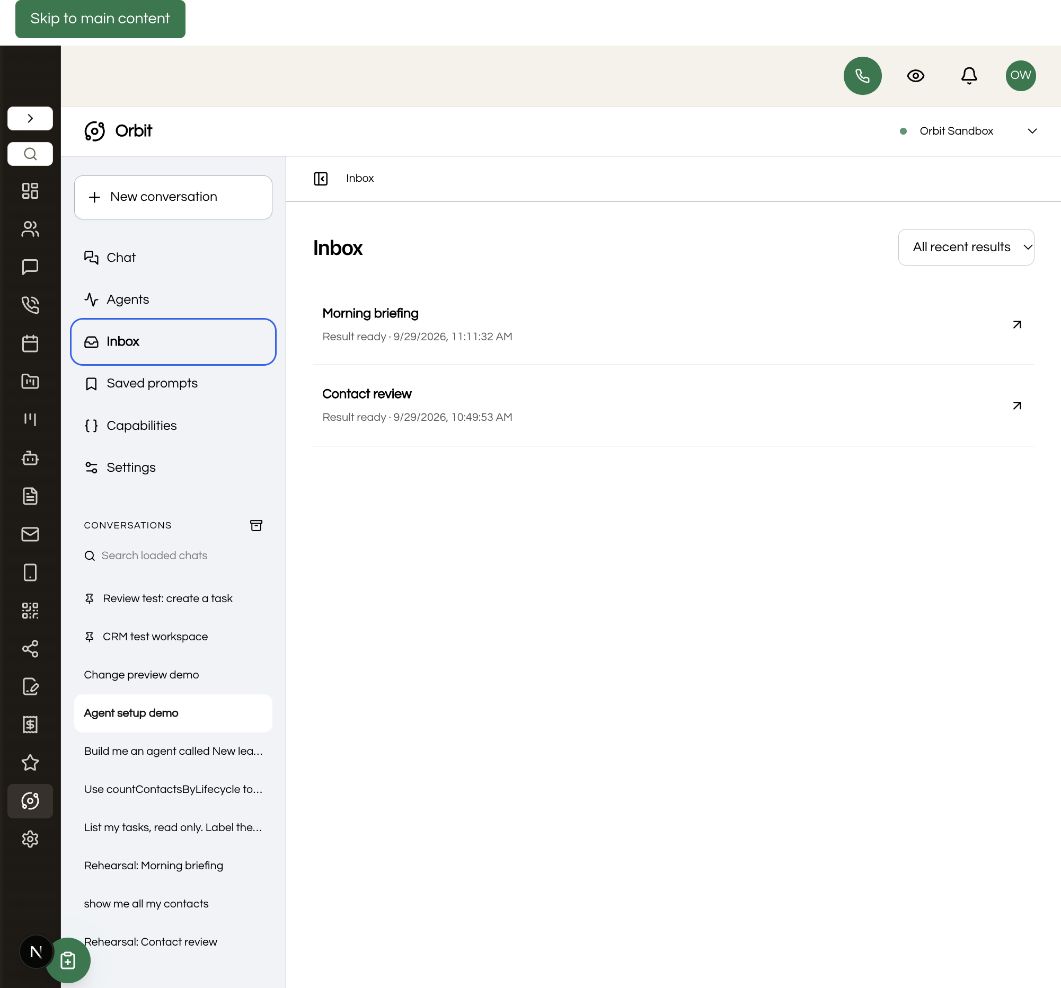
Review pending changes in one approval inbox. Find agents quickly, duplicate a job into a fresh draft, and inspect results, sources and inline visuals in Orbit. Start a separate conversation when you want to explore the data or prepare a one-off action.
The movable launcher is still here: keep the standard bubble, choose a pixel companion, upload your own image or hide it. Use your account’s brand colors or customize the look.
Repeatable jobs.
Room to ask questions.
EDITABLE SOURCE. CLEAR GUIDES.
Give your coding agent a concrete installation runbook, with verification and recovery steps. Use the extension guides to add scoped API routes, define tools and test their behavior.
MAKE IT PART OF YOUR CRM
ORBIT FOR SEEDLY CRM
$197USD · one time
Install it in your own Seedly. Keep the source. Build on it.
Already own Orbit or have active All Access? Open your download library →
Secure checkout through Whop. Your private download is delivered manually to your checkout email after payment verification.
Seedly license, hosting, AI provider usage, installation services, contracted support and promised future updates are separate.
OpenAI Realtime voice in regular Orbit conversations and support, a persistent call dock, and in-app screen controls for supported Seedly pages. New Voice & screen controls settings let you manage access levels, page permissions, voice, language, call limits and credentials. Existing agents, schedules, support and approval workflows remain included.
No. Orbit screen controls work inside your Seedly app. They do not control other browser tabs, external websites or your desktop. Each caller opts in, and the account policy sets the permitted pages and actions.
Depending on your settings, it can navigate, read supported screen context, filter lists, open records and fill supported unsaved drafts across Contacts, Tasks, Pipelines, Calendar, Conversations and Orbit. Filling a draft does not save, send, book or approve it. Supported CRM writes still require on-screen approval.
Open Orbit Settings → Voice & screen controls. Choose an access level and allowed pages, connect your OpenAI voice key, select a voice and language, and set maximum call duration and daily call limits. Agency administrators can set defaults, lock account overrides or pause voice across the agency.
Orbit provides AI support for signed-in CRM users. Human handoff sends a reviewed summary to the native Seedly support request queue, where your team follows up through its normal process. It does not include live staff chat or a staffed support service.
Add approved article text and business instructions in Support settings. Source links are references; Orbit does not automatically crawl them. Choose the CRM tools and diagnostics available to support. Agency rules can allow or lock account overrides.
An installable, editable source-code module for your own Seedly CRM, including voice, in-app screen controls, guided AI agents, schedules, customizable support, chat, setup documentation and installation tools. The $197 price is a one-time module purchase.
You define a job and its allowed tools, then rehearse it on CRM data. Review the result and refine the instructions. After accepting a successful rehearsal, enable the agent and choose manual, daily, weekday, weekly, monthly or supported CRM-event runs. Editing its configuration requires a new rehearsal.
Prepare an account briefing from opportunities and tasks, review contacts for missing details, or identify follow-up opportunities and propose tasks. Templates are editable. Results depend on the data, API access and tools available in your account.
Run now, daily, weekday, weekly and monthly schedules are included, with a local time and timezone. Schedules run on your Convex backend without an open browser. Contact-created, contact-updated and tag-added events are included, with cooldowns and duplicate protection. Events during cooldown or an active run are coalesced. Arbitrary cron expressions are not included.
No. Live agent runs prepare supported changes for your approval. Rehearsal proposals cannot be applied. Approval rechecks permissions; agent proposals expire after your configured window of 15 minutes to seven days. Pausing or revising an agent blocks its old proposals.
Feedback is saved with the run. You decide which feedback becomes a lasting rule by editing the instructions and rehearsing again. Orbit does not silently rewrite an agent’s job.
A separately licensed Seedly CRM installation, source and deployment access, and an OpenRouter account with credits and a tool-capable model. Voice also requires your own OpenAI API key and browser microphone permission. The reference host is Seedly 5.8.4 with extension API 1. Use the setup guide to check your installation.
No. Connect your own OpenRouter API key and select a model. Voice uses a separate OpenAI API key and incurs OpenAI usage charges. Rehearsals and scheduled runs consume provider credits. Record and run limits help bound usage; they are not a dollar-spend guarantee. Hosting and your Seedly license are separate.
Agency owners and administrators configure Orbit per subaccount. Each agent belongs to its creator in one subaccount and runs under that person’s current permissions. It cannot reach across accounts or expand access through an API key.
Yes. The full-page workspace and optional movable launcher remain included, with multiple conversations, saved prompts, inline charts and tables, brand colors and optional pixel companions.
Yes. The source and extension guide explain API routes, validated arguments, permissions, reviewed writes and tests. Agents can select eligible catalog tools, including Orbit lifecycle counts. Administrative and other custom extension routes are excluded from agents by default.
After payment verification, we manually deliver your private download to your checkout email. Existing owners and active All Access members can use their download library. Follow the included quickstart or give the installation runbook to your coding agent.
We use essential storage to keep the site working. With your permission, we also use analytics and the Whop Pixel to understand visits and advertising results. Optional analytics stay off until you choose.
Read our Cookie Policy and Privacy Policy.